How to Deploy and Secure PgBouncer on Easypanel

Lets Try
. 5 min read
PgBouncer is a lightweight PostgreSQL connection pooler. Instead of allowing every application request to open a new PostgreSQL connection, applications connect to PgBouncer, which reuses a smaller pool of database connections.

This guide shows how to deploy PgBouncer as an Easypanel App service, connect multiple PostgreSQL databases, use SCRAM authentication, access the PgBouncer admin console, and restrict database access to specific IP addresses.
What you need
Before starting, make sure you have:
• An Easypanel project.
• Reachable PostgreSQL servers or Easypanel PostgreSQL services.
• Database users and passwords for each PostgreSQL database.
• The public IP addresses that should be allowed to connect.
• A non-HTTP port available on the server, such as 6432.
For a pinned image version, use:
Avoid latest in production so deployments are reproducible.
1. Create a PgBouncer App service
1. Open your Easypanel project.
2. Select New Service.
3. Choose App.
4. Name the service, for example pgbouncer.
5. Open Source.
6. Choose Docker Image.
7. Enter:
PgBouncer listens on port 5432 inside this container. You can publish a different external port, such as 6432.
2. Create pgbouncer.ini
In Easypanel, open the PgBouncer service and go to Storage. Add a File mount:

Paste the following configuration and replace the database hostnames, aliases, and limits for your environment:
Important: use database aliases
Clients should connect to the PgBouncer aliases from the [databases] section:
• app_pg1 routes to database pgdemo
• app_pg2 routes to database pgdemo1
For example, the application connects to /app_pg1, not directly to /pgdemo.
Avoid inline comments
PgBouncer does not support comments after a setting value. This will fail:
Use a separate comment line instead:
3. Create userlist.txt for SCRAM authentication
PgBouncer needs a user list containing the users allowed to authenticate.
In Storage, add another File mount:
The format is:
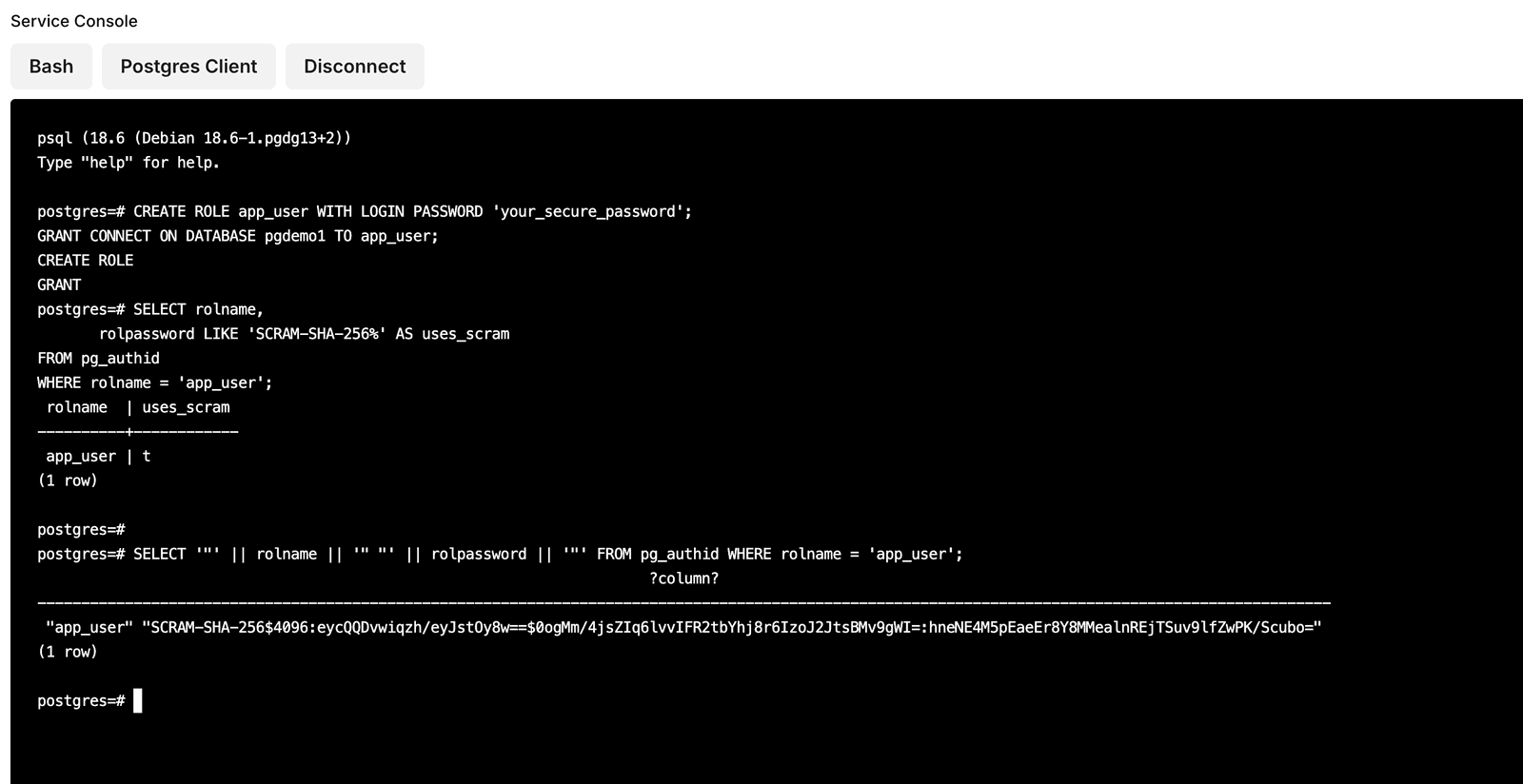
How to generate a valid SCRAM from Postgres database.
Create a PgBouncer-only admin user
pgbouncer_admin does not need to remain a PostgreSQL user. It exists only for the PgBouncer admin console.
Create it temporarily in PostgreSQL to generate a valid SCRAM verifier:
Copy the query output into userlist.txt:
Keep the chosen password private. You will use it to connect to the PgBouncer admin console.
4. Publish the PgBouncer TCP port
PgBouncer is a PostgreSQL TCP service, not an HTTP application. Do not use Easypanel Domains for this.
Open the service Ports section and add:
• Published port: 6432
• Target port: 5432
This means:
• Clients connect to your server on port 6432.
• Easypanel forwards traffic to PgBouncer on port 5432 inside the container.
Your application connection string will look like this:
5. Deploy the service
Select Deploy in Easypanel.
6. Test the PgBouncer admin console
Connect to the special pgbouncer database with the admin user:
Useful commands include:
SHOW POOLS; is usually the first command to run. It shows client connections, waiting clients, active backend connections, and the pool mode for each database and user.
7. Restrict PgBouncer access to selected IP addresses
Publishing port 6432 makes the PgBouncer listener reachable from the internet unless a firewall or access rule blocks it.
PgBouncer can restrict access using an HBA file.
Update pgbouncer.ini
Change the authentication section to:
The auth_file still holds the SCRAM credentials. The HBA file decides which source IP addresses may attempt authentication.
Create pg_hba.conf
In Easypanel Storage, add another File mount:
Example configuration:
Replace the example addresses with real public IP addresses.
PgBouncer denies access when no HBA rule matches. Do not add a broad rule such as 0.0.0.0/0 unless public access is intentional.
8. Reload PgBouncer after file changes
After changing pgbouncer.ini, userlist.txt, or pg_hba.conf, deploy the service through Easypanel.
If the file is mounted and updated but PgBouncer still appears to use old credentials, open the Easypanel service shell and reload the running process:

More Stories from
Deploy Boxcoin SAAS on VPS Ubuntu Nginx Server
Looking for the fastest way to run Boxcoin Crypto SAAS on Ubuntu server? We cover the full installation process on Self-Managed VPS of webdock, hetzner, aws
Set Up Daily MySQL Backups to DigitalOcean Spaces (S3-Compatible)
Step-by-Step Guide to implement Automated MySQL Database Backup to DigitalOcean Spaces or s3 compatible buckets (With Retention & Logs) on Ubuntu server.

Raspberry Pi NAS: Install OpenMediaVault + CasaOS (Step-by-Step Guide)
Turn your Raspberry Pi into a powerful NAS by installing OMV for RAID storage and CasaOS for a simple UI—build a secure, user-friendly home cloud.

Window Server 2025 Contabo VPS Install Guide
Window server in contabo is very costly but you can deploy your license key with custom image.
Setting up SSH keys to a Ubuntu Server with Mac
Generating SSH keys on a Mac for use with an Ubuntu server is a straightforward process. Here’s a step-by-step guide: Generate the SSH Key Pair